Jyvers must use the Pensa Systems app to complete shelf scans. This guide provides a quick overview of how to use it.
Get to Know the Pensa App - This section will guide you through the app, from finding a store to completing and submitting a scan.
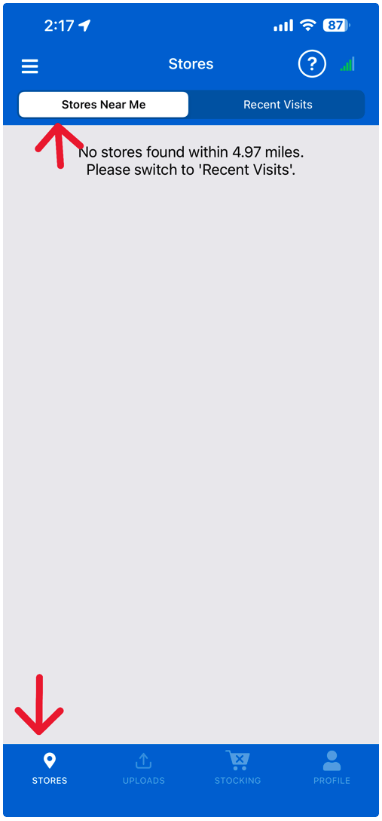
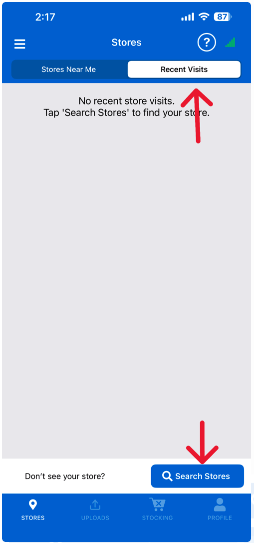
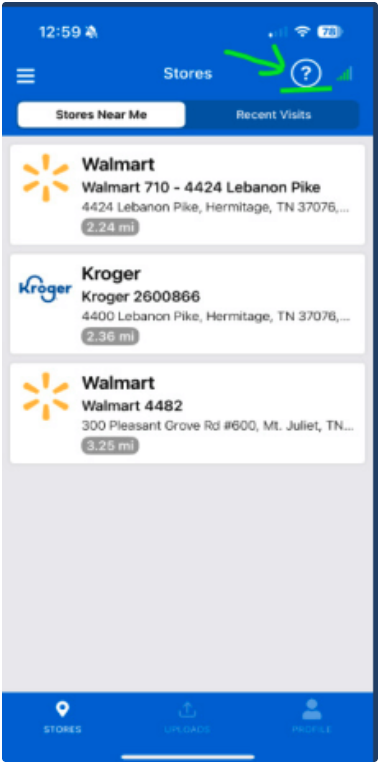
Stores Near Me - This tab shows all stores within 5 miles of your current location that you're authorized to capture.
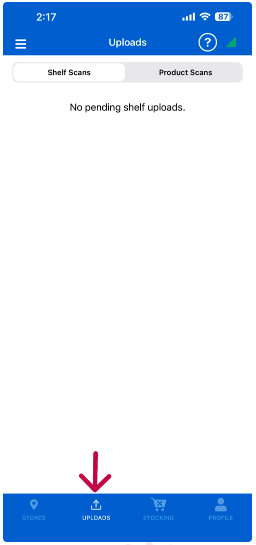
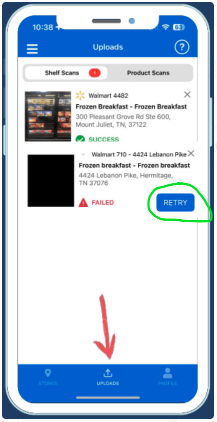
Uploads – View all scans you have completed.
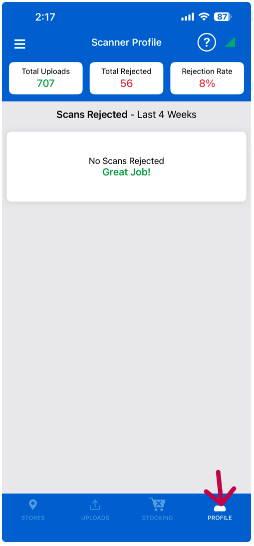
Profile Page - This tab shows your scanning activity from the past 4 weeks, highlights areas for improvement, and includes training videos to help you scan correctly on your next visit.
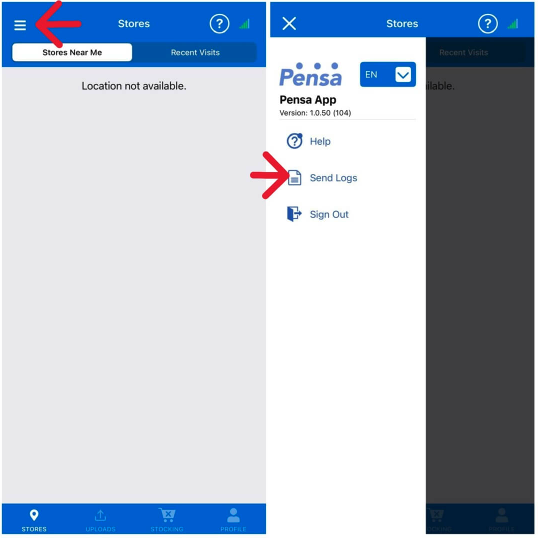
Hamburger Menu - If you have app issues, follow the steps to send logs to the mobile team so they can investigate and fix the problem.
Search for a Store - If you don’t see a store within 5 miles, make sure location services and precise location are enabled. You can also search manually using the banner name and store number (e.g., Walmart 1234).
How to Capture a Scan - After logging in, select Store Near Me, choose a scan from the checklist, then pick the shelf area to scan and start capturing. Below are walkthroughs that show the process both in-app and from a third-person perspective.
Yogurt Screen Recording
Yogurt Scan
Edge Cases - Here are some edge cases you may encounter while scanning in stores, with suggested ways to handle them.
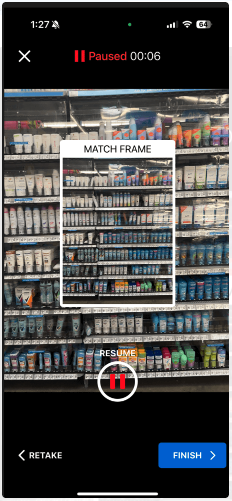
Shopper Interruption During Scanning - If a customer or worker blocks the view, use Pause and Resume until the area is clear. When resuming, match the frame as closely as possible.
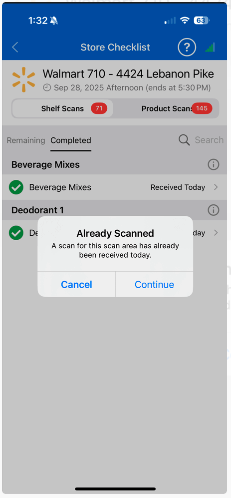
Scanned the Incorrect Area - If you scanned the wrong area or need to rescan, go to the Completed tab, select the shelf, then tap Continue. You can also use this if you uploaded a bad scan.
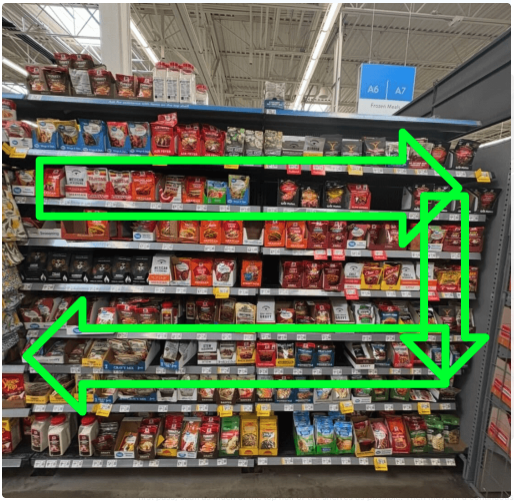
Unable to Capture All Shelves in One Frame - If you can’t capture everything in one scan, use a two-pass scan. First, scan the top half of the shelves, then move down smoothly to capture the bottom half, making sure to overlap with the first pass.
Completing a Store Visit
Prior to Leaving the Store (Follow-Up Items) - Before leaving the store or marking the job as complete, please ensure all required tasks have been fully completed. Missing or incomplete items may impact your ability to receive full credit for the store visit. Review all follow-up items carefully and confirm everything has been addressed before departing.
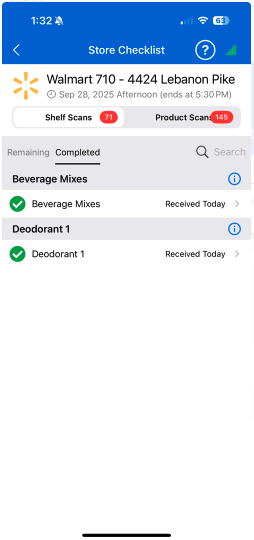
Task List Complete - The Task List shows the categories and shelf sections that are expected to be captured during your store visit. Before leaving the store or marking the job as complete, please review the list and confirm that all required tasks have been completed.
Support and Help Resources
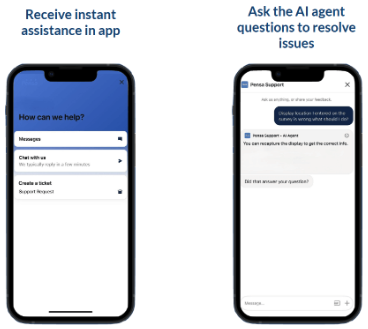
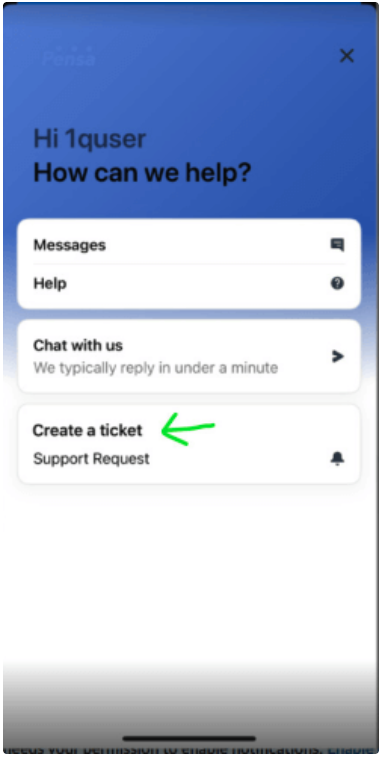
Support - This section provides an overview of the support tools and resources available to assist you, including the AI assistant, ticketing system, and other helpful features. If you need assistance or encounter an issue, click the “?” icon to start a chat with Support or submit a ticket.
AI Agent - Need help? Start by chatting with our AI support agent. It's available 24/7 and can quickly resolve most issues in just a few minutes.
Submit a Ticket - If the AI support agent is unable to resolve your issue, please submit a ticket. Our team will review it and respond within our standard support timeframes.
Once completed, you will receive a certificate confirming successful completion.