PENSA: Frequently Asked Questions

Edited

Q1: How to complete a Pensa job?

To complete a Pensa job, claim the jyve directly in the app and review the task list and instructions. Before arriving, make sure you can log in to the Pensa app. At the store, start the Jyve, take a photo of the storefront, and complete the first task. Then open the Pensa app, select the same store that you claimed in the Jyve app, and complete the required shelf scans, ensuring you're following the guidelines that you reviewed in the certification. Once finished, return to the Jyve app, complete any remaining information, and submit the job before leaving the store.

Q2: How do I log in to the Pensa app?

To log in to the Pensa app, use the username and password provided for your location.

Please note that usernames and passwords are case-sensitive, so enter them exactly as provided!

State

Username

Password

Alabama

jyveal

Jyvepensa123

Arizona

jyveaz

Jyvepensa123

Arkansas

jyvear

Jyvepensa123

California

JyveCA

Jyvepensa123

Colorado

JyveCO

Jyvepensa123

Florida

JyveFL

Jyvepensa123

Georgia

JyveAtlanta

Jyvepensa123

Idaho

jyveid

Jyvepensa123

Illinois

JyveChicago

Jyvepensa123

Louisiana

jyvela

Jyvepensa123

Maryland

JyveMD

Jyvepensa123

Michigan

jyvemi

Jyvepensa123

Missouri

jyvemo

Jyvepensa123

New Jersey

jyvenj

Jyvepensa123

New York

jyveny

Jyvepensa123

North Carolina

JyveNC

Jyvepensa123

Ohio

jyveoh

Jyvepensa123

Oklahoma

jyveok

Jyvepensa123

Pennsylvania

jyvepa

Jyvepensa123

South Carolina

jyvesc

Jyvepensa123

Texas

JyveTX

Jyvepensa123

Washington

JyveSeattle

Jyvepensa123

Q3: What is a 2-pass scan?

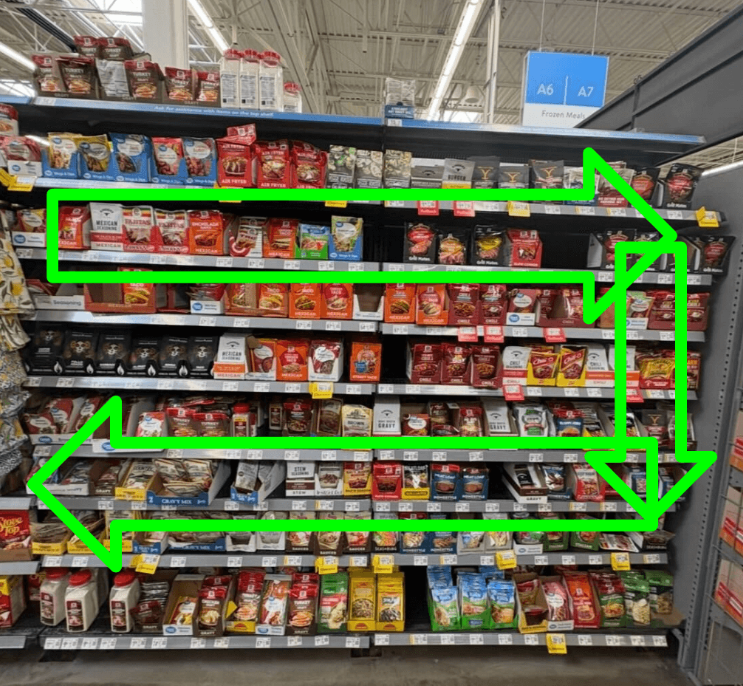
If all intended products don't fit in one frame on a single pass, complete a two-pass scan.

Capture the top shelves
starting from the top left, scanning to the right, then back leftward, scanning the bottom, overlapping slightly to ensure all items are captured.

Key Points:

  • Start in the upper left-hand corner and scan to the right.

  • Capture as many shelves as you can in the first pass (overlapping on the second pass)

Q4: When should I use a 2-pass scan?

A 2-pass scan can always be used for any type of scan. However, you should specifically ensure you use it when the aisle is narrow, such as in a Dollar General or a PetSmart.

Q5: Why is the Pensa app asking me to scan the same section more than once?

The Pensa app may have more than one scan for the same section due to the products required for the scan being separated by products not required in the scan. If you can capture all the required products within just one scan, please leave any extra scans or duplicates. Don't bucket them under "Can't Scan."

Q6: How do I determine where to start and stop my scan if no reference photos are available in the Pensa app?

If no reference photos are available in the Pensa app, follow these steps:

  1. First, ensure that the description of the scan isn't already detailed enough that it provides you with enough context on where you start and stop the scan.

  2. If that doesn't work, though, watch this quick video on navigating to the "What To Scan" Document that is not included directly inside the Pensa app!

Q7: Can I still scan shelves if I have a poor internet connection?

You DON'T have to wait for each scan to upload. Each scan you take saves on the Pensa side for upwards of 5 days.

This means that if you're at a store with a poor connection and it's taking too long to upload, you can continue taking all your scans as usual. Then, once you’ve gotten each required scan and left the store, go back out and scan the list until you see  3 tabs at the bottom of the Pensa app.

Click on the UPLOADS button, and they'll be there for you to upload at any time within the 5-day window!

Q8: How many scans can I expect in-store?

The number of scans varies by store. Some locations may only require 2–4 scans, while larger stores can require 30–45 scans at a single location. 

Stores like Walmart, PetSmart, and Dollar General typically have more scans, while Safeway, Vons, Target, and Tractor Supply usually have fewer.

Q9: Why is the Pensa app showing stores close to me, but I can’t claim them in the Jyve app?

Stores shown in the Pensa app have been scanned by Pensa previously, which is why they’re already in the system. However, that does not necessarily mean they’ve been requested for the current month.

You are only authorized to scan stores that you have claimed through the Jyve app. Any additional stores showing in the Pensa app that were not claimed through Jyve can be ignored.

Q10: What if an employee comes up to me and asks what I am doing? 

Be honest! You’re doing video shelf scans for consumer packaged goods (CPG) brands like General Mills and Kraft.

Across the thousands of Pensa scans we’ve completed over the last four years, we’ve only had two Jyvers ever be asked to leave a store — and both were able to return later to finish their scans. It’s rare.

Just stay respectful, calm, clear, and approachable when someone asks what you’re doing is almost always the best approach.

Q11: Are jyves with Pensa similar to a secret shopper role? 

Yes, very similar! The main difference is that you are not merchandising and do not need access to the backroom. Your role is strictly focused on completing the shelf scans.

Once you arrive at the store, you can jump right in and begin scanning.

Q12: How long does it take to validate my scans after uploading? 

Your scan is usually reviewed and processed within 48 hours after submission.

Was this article helpful?

Sorry about that! Care to tell us more?

Thanks for the feedback!

There was an issue submitting your feedback
Please check your connection and try again.